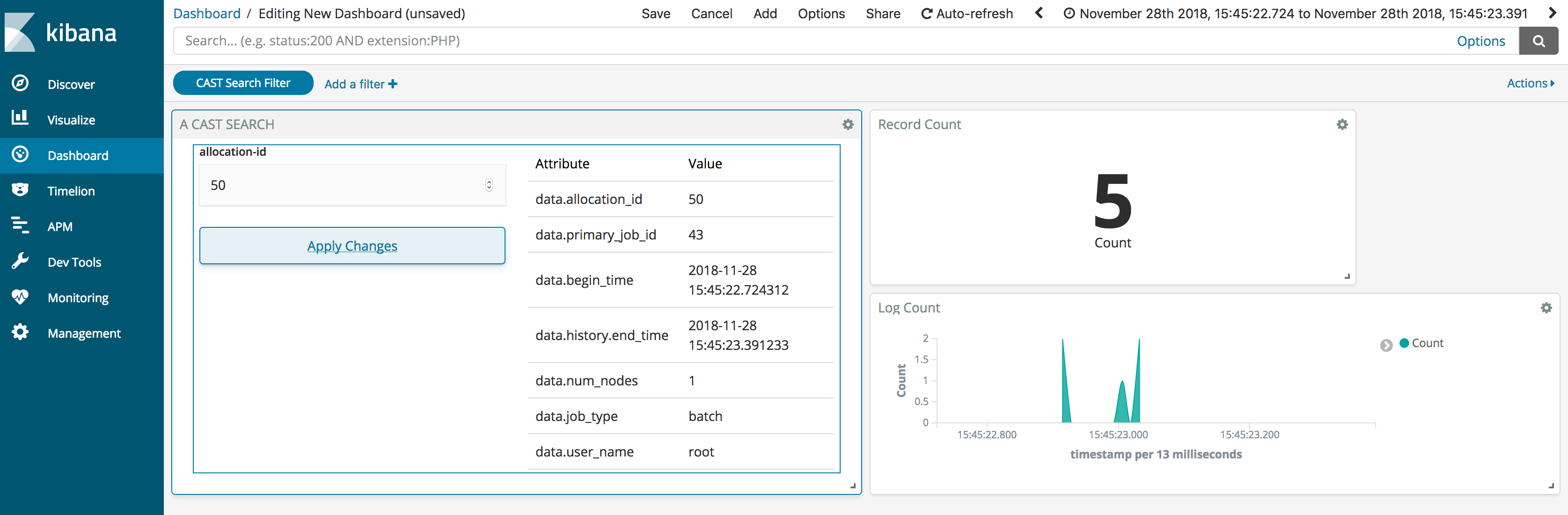
Cast Search
The cast search mechanism is a GUI utility for searching for allocations in the Big Data Store.
Installation
Installation of the CAST Search plugin is performed through the ibm-csm-bds-kibana-*.noarch.rpm rpm:
rpm -ivh ibm-csm-bds-kibana-*.noarch.rpm
Attention
Kibana must be installed first please refer to the :ref: cast-kibana documentation.
Configuration
After installing the plugin the following steps must be taken to begin using the plugin.
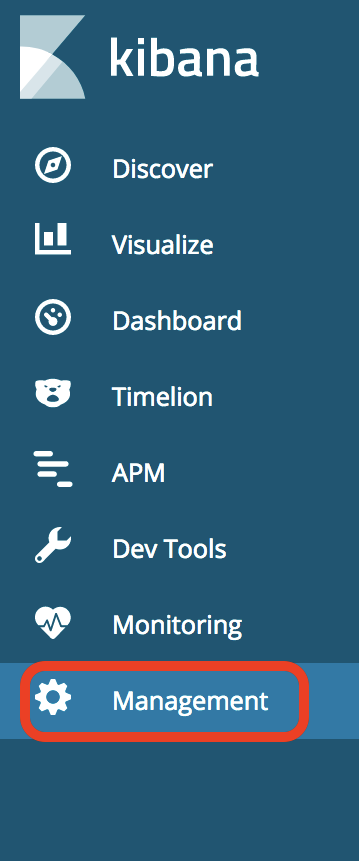
- Select the Management tab from the sidebar:
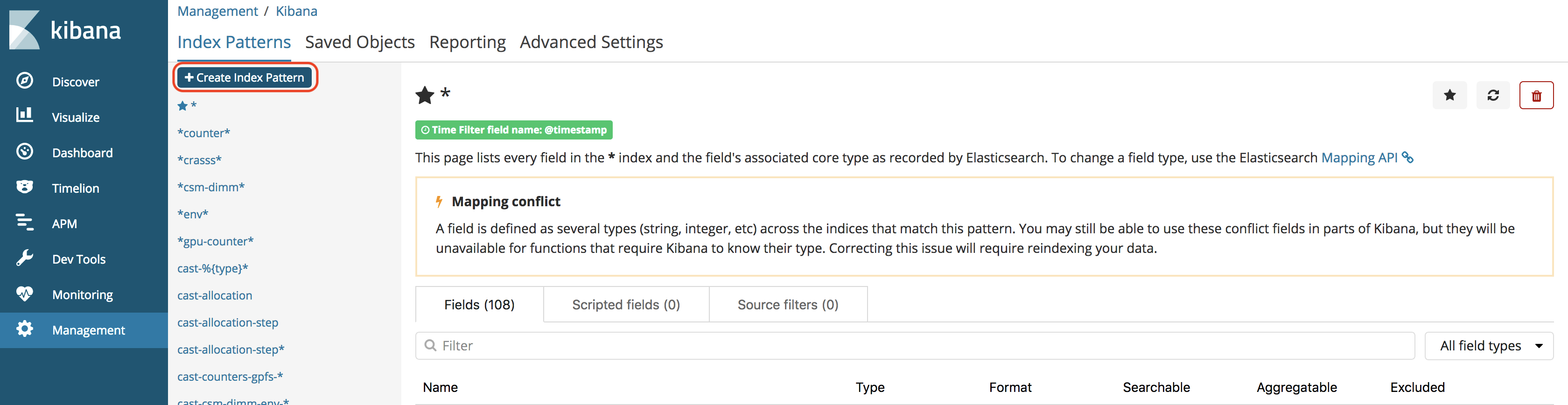
- Select the Kibana Index Patterns:

3. If the cast-allocation index pattern is not present create a new index pattern. If the index pattern is present skip to Step Seven:
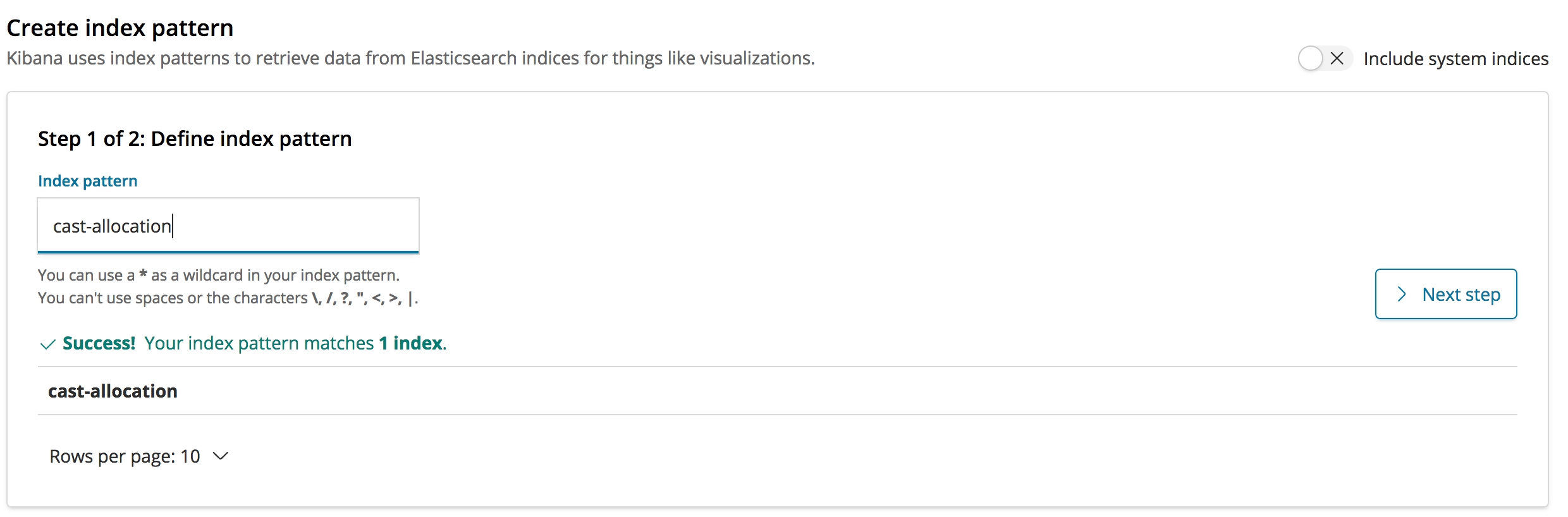
- Input cast-allocation in the index pattern name:
- Select @timestamp for the time filter (this will sort records by update date by default:

- Verify that the cast-allocation index pattern is now present:
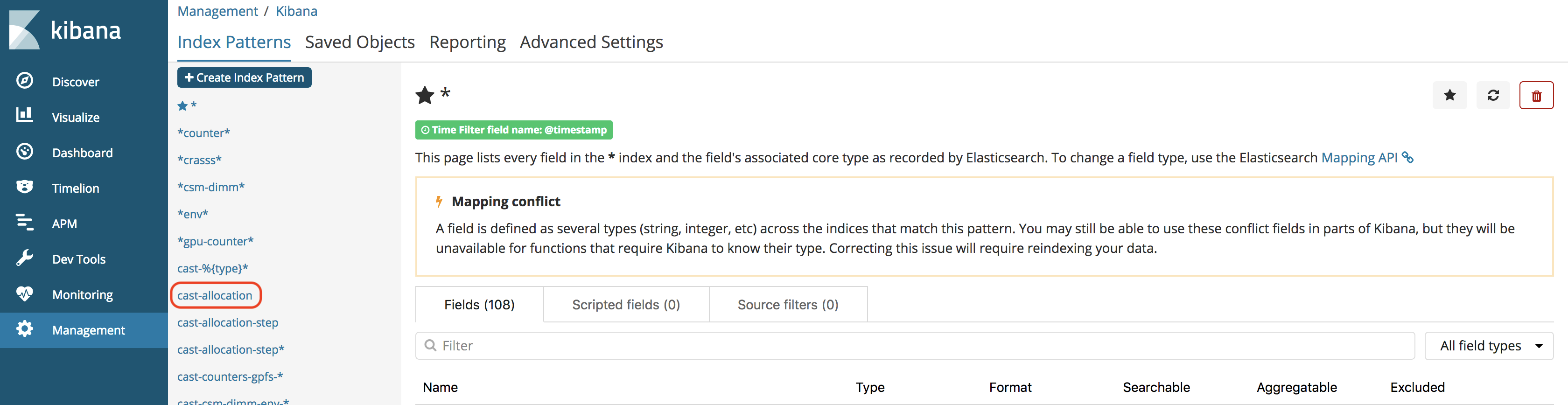
- Select the Visualize sidebar tab, then select the CAST Search option:
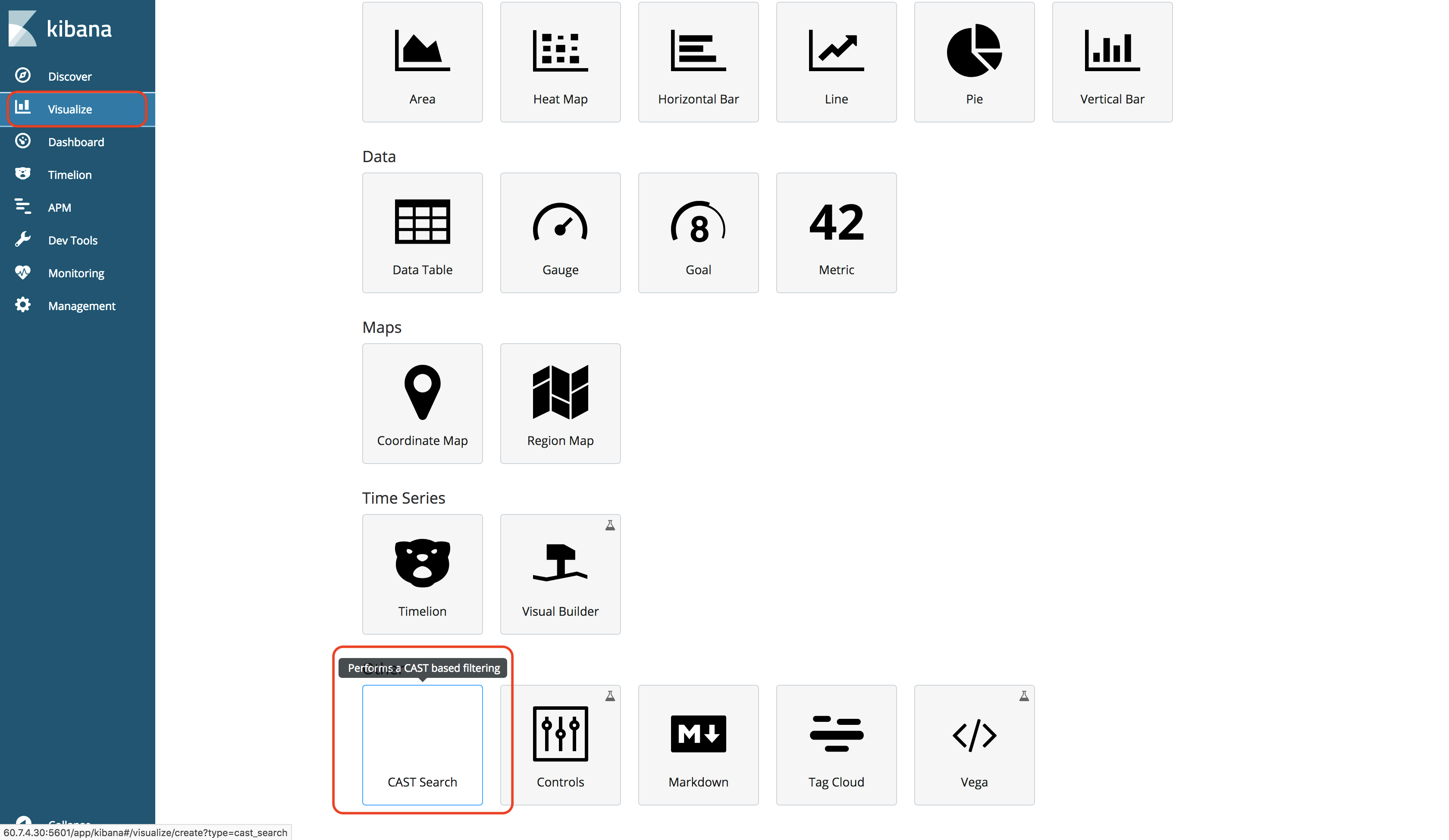
8. Select the add option, by default this will select the Allocation ID option. If the user wishes to search on Job IDs, select Job ID in the dropdown.

- A listing of fields should now be visible. Select the Apply changes button before saving the visualization:

- Save the Visualization so the plugin may be used from a dashboard:

- Select the Dashboard sidebar tab, then create a new dashboard:

- Select the Add option, then select the visualizer created in Step Ten and Add new Visualization:
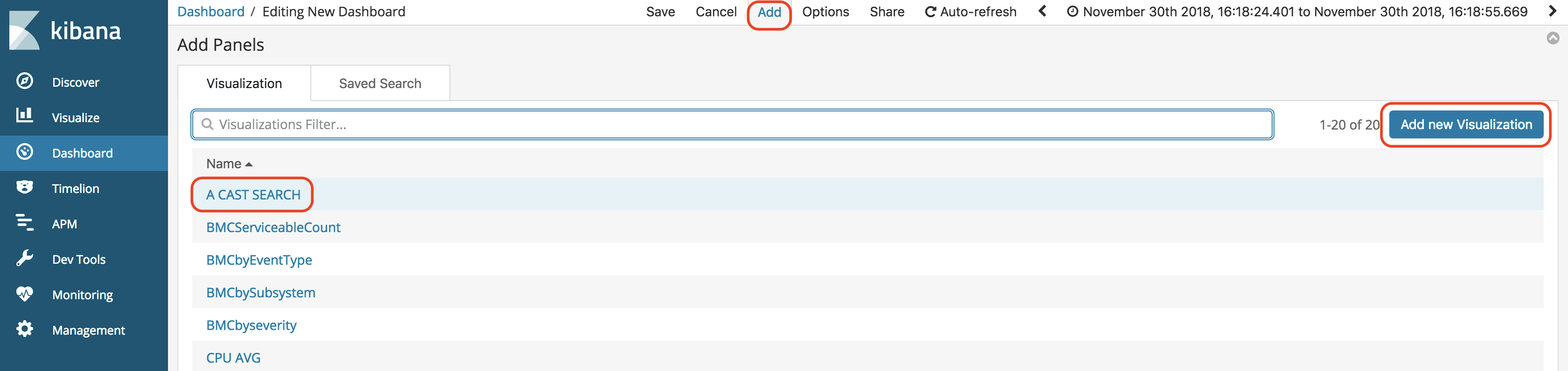
- The plugin should now be usable: